
How to Change Your cPanel Password
Keeping your cPanel account safe is important for your website, emails, and hosting information. If you suspect unauthorized access, want to strengthen your protection, or need to reset your password, you can do so quickly and easily.
This guide outlines two methods for changing your cPanel password:
- From Inside cPanel
- From Your MaxCyberHost Client Area
Change Your Password from Inside cPanel
To change your password from inside cPanel, follow these steps:
- Log in to your cPanel account.
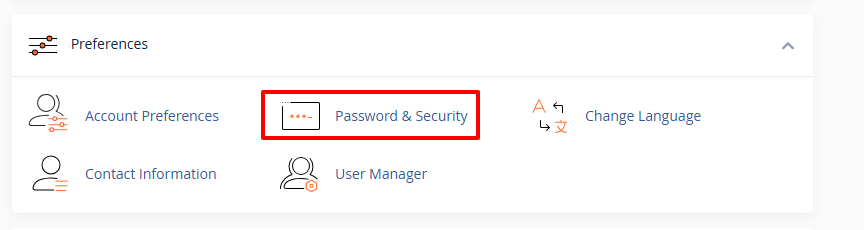
- Scroll down to the Preferences section and click on Password & Security.

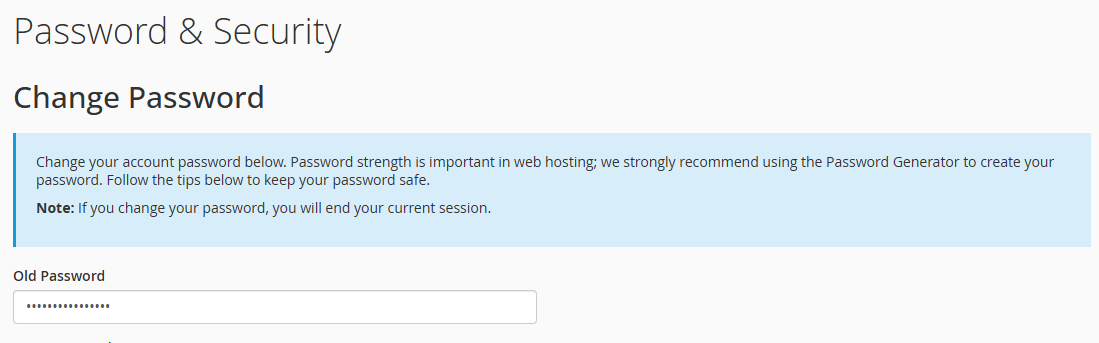
- In the Old Password textbox, enter your current password.

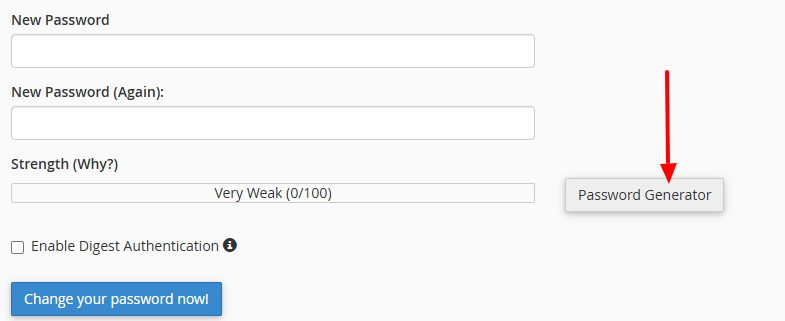
- Enter a strong new password or use a Password Generator for enhanced security.

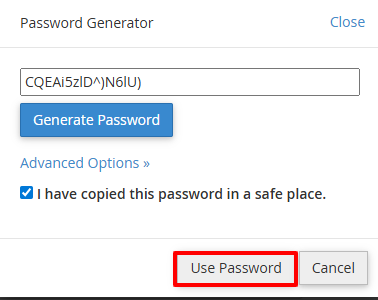
- Click on Password Generator, then click Use Password to apply it.

- Click Change your password now! to save the changes. Your cPanel password will be updated.


Change Your cPanel Password from the MaxCyberHost Client Area
To change your cPanel password from the MaxCyberHost Client Area, follow these steps:
- Log in to your MaxCyberHost client area.

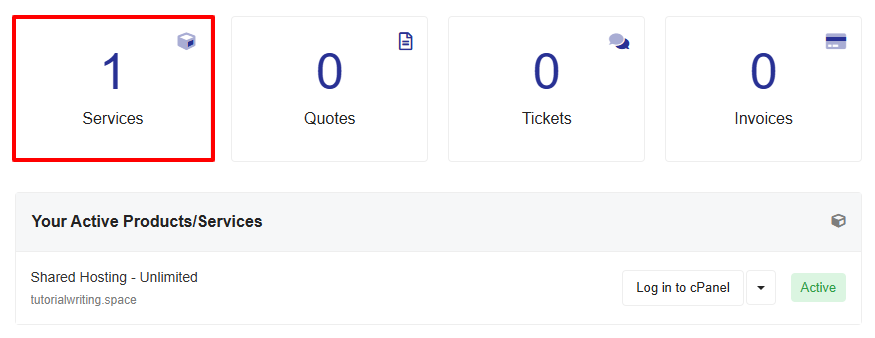
- In the top menu, click on Services to view your active hosting accounts.

- You will see a list of your active hosting accounts.

- Click the Active button next to the hosting account you want to update.

- In the left sidebar under Actions, click on Change Password.

- Enter a strong new password or use a Password Generator for added security.

- Click Generate Password, then click the Copy to Clipboard and Insert button.

- Click Save Changes. Your cPanel password will be updated.



By following these steps, you can successfully update your cPanel password and improve the security of your hosting account. Using strong, unique passwords significantly reduces the risk of unauthorized access. A password generator can help you create even more secure passwords. Remember to store your passwords safely and update them regularly to protect your website, emails, and data.