
How to Create and Manage MySQL Databases in cPanel
MySQL databases are important for running websites and web applications. Whether you operate a blog, an e-commerce store, or a custom web application, having control over your databases is crucial. cPanel simplifies the process of creating MySQL databases, making it accessible even for beginners.
cPanel offers two tools for creating databases: Manage My Databases and Database Wizard. You can choose either method based on your preference. This guide will walk you through both options.
Method 1: Create a Database Using Manage My Databases
Creating MySQL databases in cPanel using the Manage My Databases feature is a simple process. Follow these steps:
- Log in to your cPanel account.
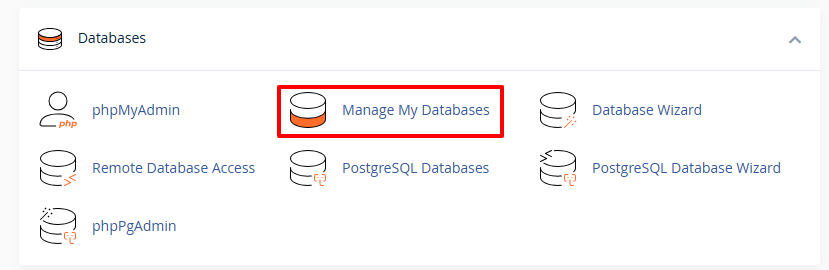
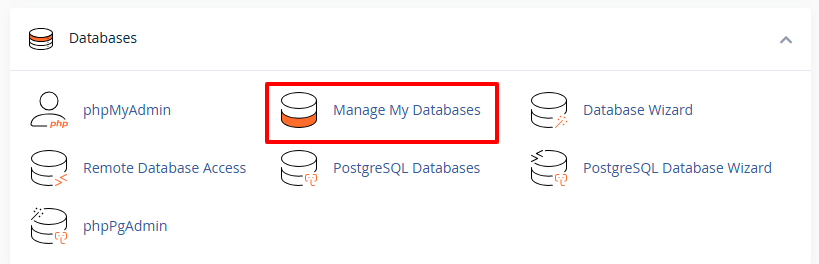
- Navigate to the Databases section and click on Manage My Databases.

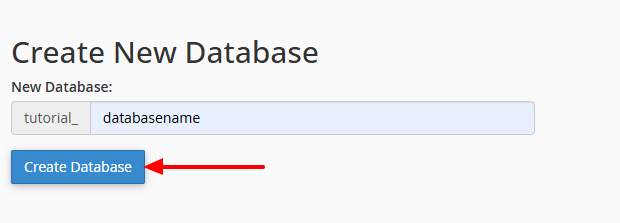
- Locate the Create New Database section. Enter a name for your database and click Create Database. Choose a clear and relevant name to stay organized.

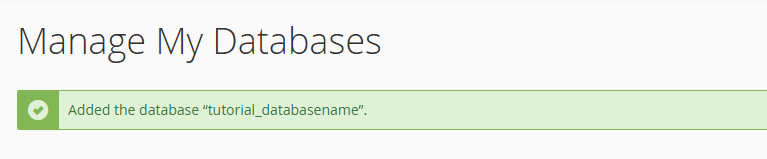
- A confirmation message will appear, indicating that the database has been created.

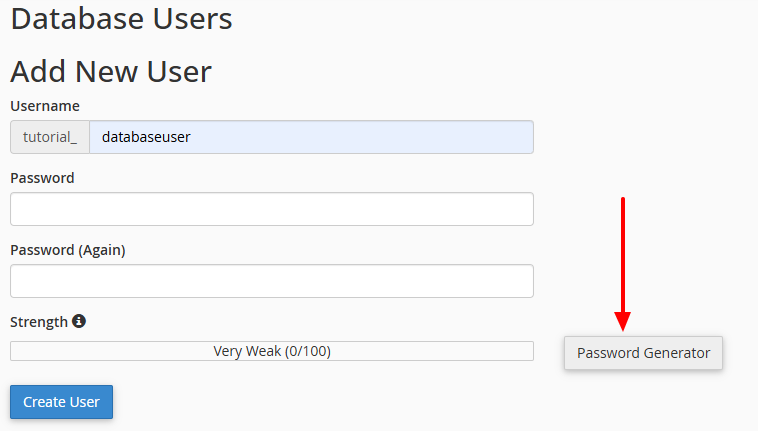
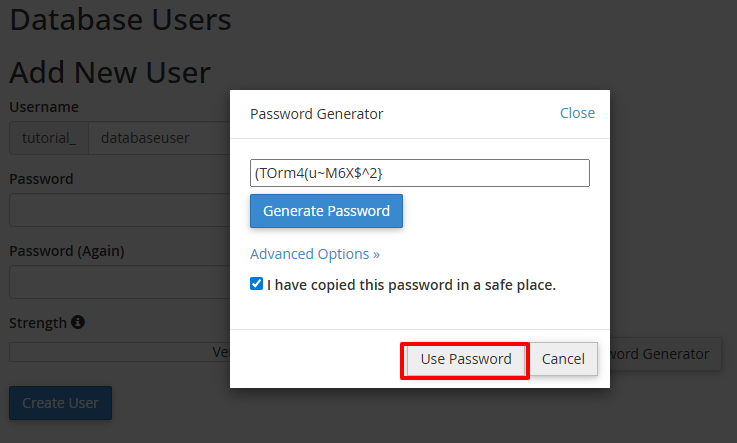
- Scroll down to the Database Users section. Enter a username and a strong password for the database user. You can use the Password Generator to enhance security.

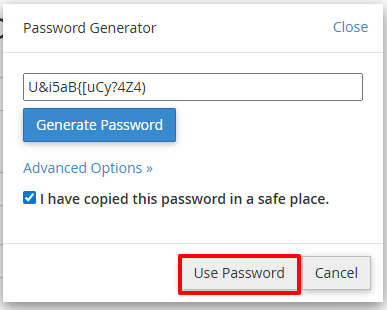
- Click Generate Password, then click Use Password to apply it. Strong passwords help protect your database from unauthorized access.

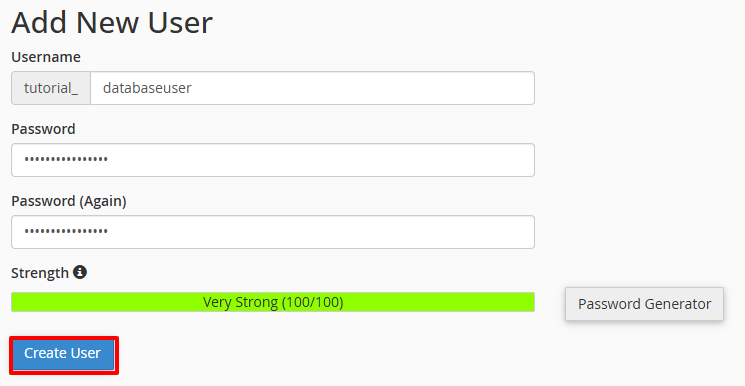
- Click the Create User button. A confirmation message will appear, indicating that the user has been added.

- Assign the user to the database. Select the user and database from the dropdown menus, then click Add.

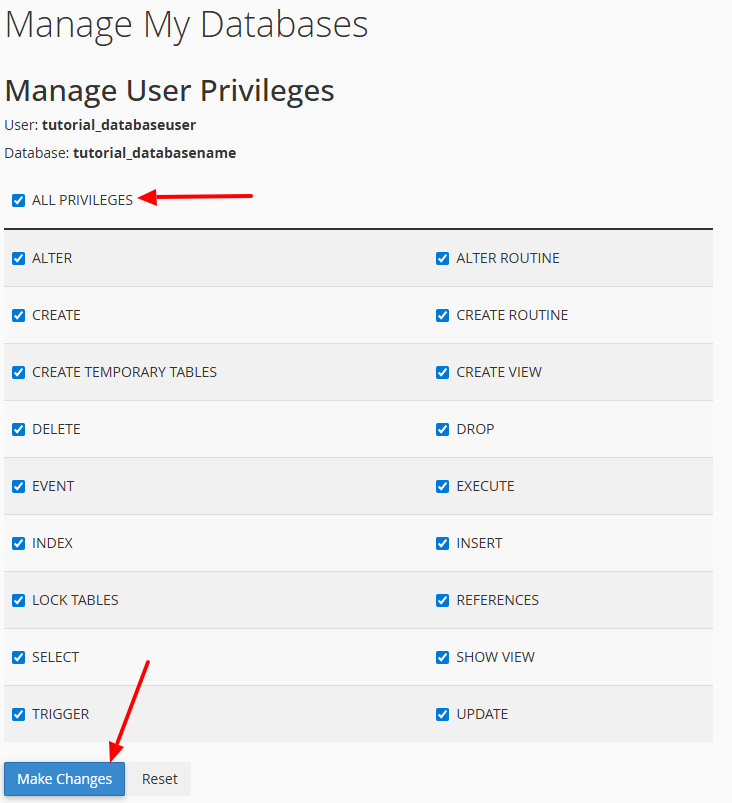
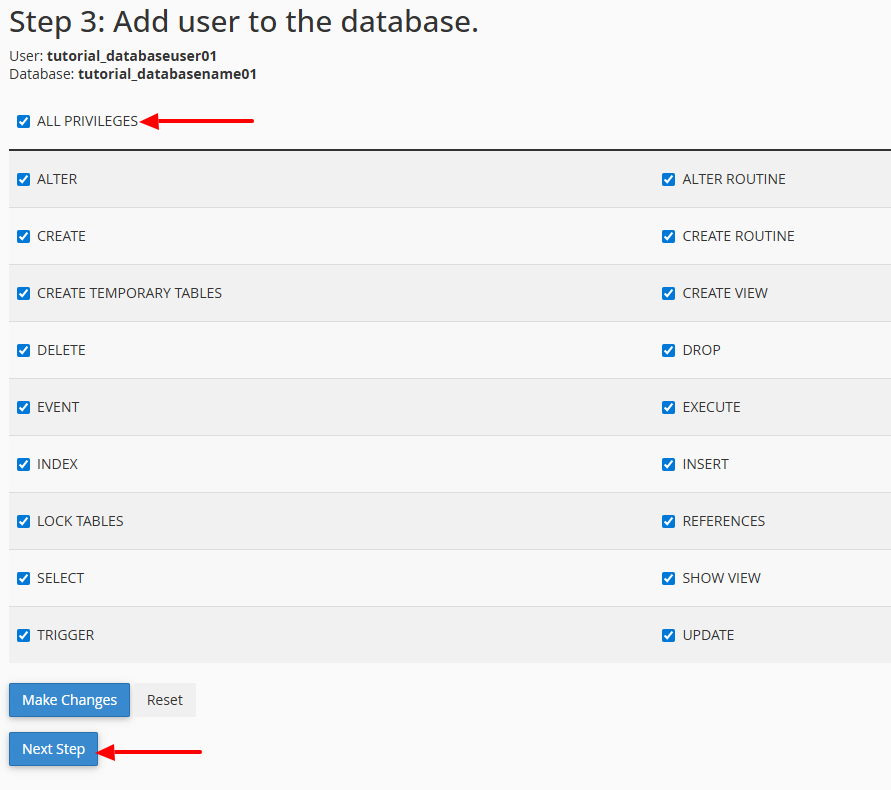
- Assign privileges to the user. Select All Privileges if full access is required, then click Make Changes.

- A confirmation message will appear, confirming that the privileges have been assigned.



Method 2: Create a Database Using Database Wizard
- 1. Log in to your cPanel account.
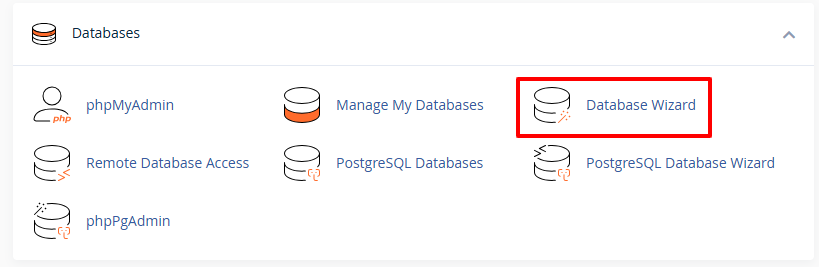
- Go to the Databases section and click on Database Wizard.

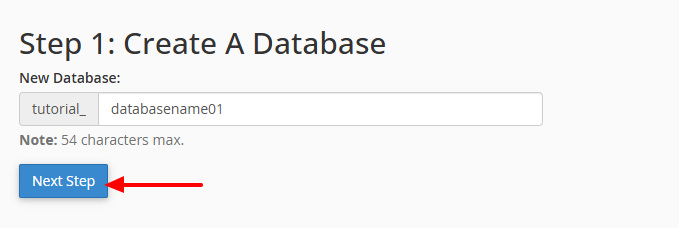
- Enter a name for your new database and click Next Step. Choose a descriptive name to stay organized.

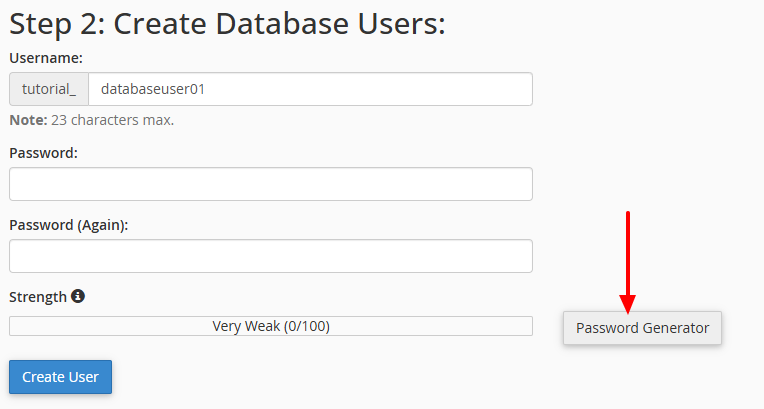
- Create a database user by entering a username and a strong password. Use the Password Generator for added security.


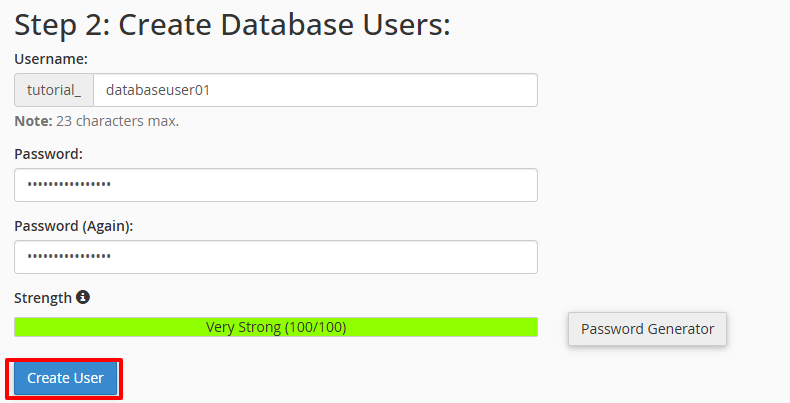
- Click Create User after entering the details.

- Assign the user to the database. Select the privileges for the user. To grant full control, select All Privileges and click Next Step.

- A confirmation message will appear showing the database and user have been created and linked.


Both methods allow for the quick creation of MySQL databases in cPanel. Beginners may prefer the Database Wizard for its step-by-step guidance, while experienced users might opt for Manage My Databases for direct control.
Managing Existing MySQL Databases
You may need to manage your existing MySQL databases and users, and cPanel makes this easy through the Manage My Databases section. Here’s a guide on how to handle common management tasks:
1. Delete a MySQL Database
To remove an existing database, follow these steps:
- Go to the cPanel Dashboard.

- Scroll to the Databases section and click on Manage My Databases.

- Find the database you want to delete and click Delete.

- Confirm the deletion.
 Note: This action permanently removes the database and all its data.



2. Delete a Database User
To remove a user that is no longer needed:
- Go to the Current Users section.
- Locate the user you want to remove.
- Click Delete next to the username.

- Confirm the deletion.Note: This will remove the user from the system and revoke all access.

3. Assign Another User to a Database
If you need to change the user that can access a database:
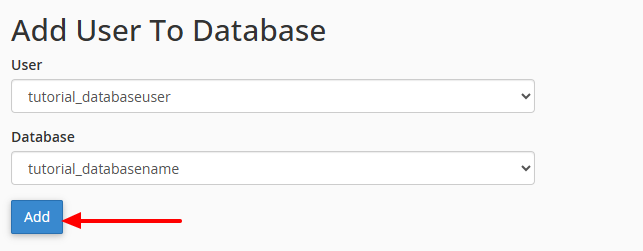
- In Manage My Databases, find the Add User to Database section.
- Select a user from the User dropdown.
- Select a database from the Database dropdown.
- Click Add.
- Choose the privileges you want to assign and click Make Changes.

4. Change User Password
To update a database user’s password:
- Go to the Current Users section in Manage My Databases.
- Find the user whose password you want to change.

- Click Change Password.
- Enter a strong new password or use the Password Generator.
- Click Change Password to save.


Effectively managing your MySQL databases in cPanel gives you full control and security. By removing outdated databases and users, and updating passwords, you maintain a streamlined and secure environment that ensures your website or application runs efficiently.