
How to Order a Shared Web Hosting Package
Selecting the right web hosting service is vital for the success of your website. Shared web hosting is often the most budget-friendly and flexible option. MaxCyberHost offers a shared web hosting package with various features, making it easy for both individuals and businesses to establish their online presence. Here’s a clear step-by-step guide on how to order a shared web hosting package from MaxCyberHost:
- Visit the MaxCyberHost website.
- On the main page, scroll down to the Hosting plans section to view the plan details
- Review the plan’s features, such as disk space, bandwidth, free SSL, and email services.
- Click the Order Now button under the Web Hosting plan.

- You can also order by clicking the GET STARTED NOW button located at the top of the website.
- Enter the existing domain name you wish to use with your hosting account, then click the Use button to add the domain.

- Review the configuration page. Scroll down to select your billing cycle from the dropdown menu. The available options are: Monthly, Quarterly, Semi-Annually, or Annually.
- Click Continue to move to the checkout page.
- On the checkout page, review the selected products and apply a promo code if you have one.
- Click the Checkout button.
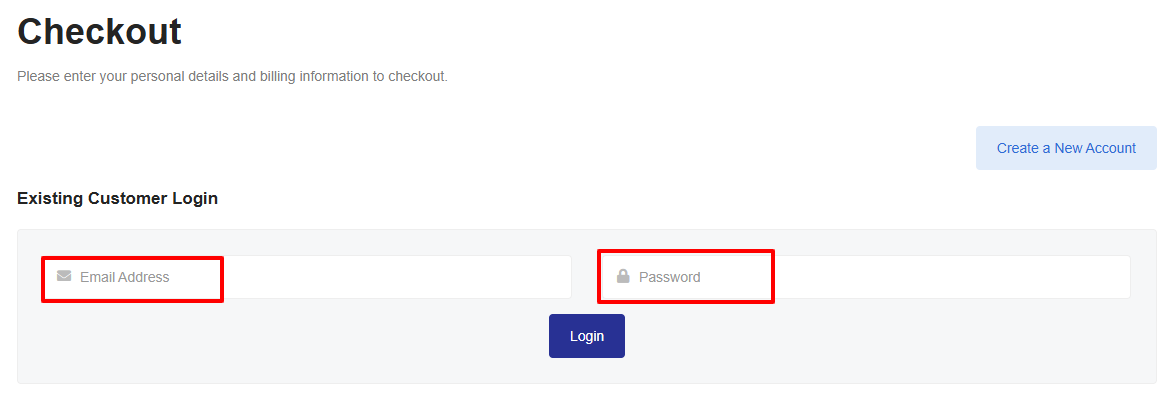
- If you’re already registered, click the Already Registered? button and enter your email address and password.


- If you are a new user, provide your personal details and billing address to complete the checkout process.


- Choose a strong password for your account, or use the Password Generator for added security.

- Click Generate Password to create a strong password. Then click Copy to Clipboard and Insert to use the password in your account.

- Select your payment method. Bkash Automatic Payment and PayPal is currently available. If you are paying in USD, select Paypal and if you are paying in Bangladesh Taka, select Bkash.
- You can add additional notes in the available section on the checkout page for any special instructions or requests regarding your hosting order.

- Click the Complete Order button to finalize your purchase.

- Please wait while the system redirects you to complete payment using the selected method. Complete the payment to finalize your order.

- After completing the order, check your email for New Account Information. This email includes your hosting details, cPanel login information, DNS details, and email settings.
- Log in to your hosting account and access your control panel to start setting up your website.




By following these steps, you will secure a reliable hosting solution tailored to your needs. MaxCyberHost provides responsive customer support and a range of features to help you establish a professional online presence.