
How to Create and Manage FTP Accounts in cPanel
File Transfer Protocol, or simply FTP, is an easy and effective way to upload, download, and manage files on your website. Whether you’re updating website content, sharing access with a developer, or organizing files in your hosting account, FTP makes it easy to handle files efficiently.
This tutorial will walk you through the whole process: from creating FTP accounts to managing, modifying, and securely configuring FTP access.
What Is FTP and Why Is It Used?
FTP stands for File Transfer Protocol and is a standard network protocol that helps you transfer files from your computer to your web hosting account and vice versa. It initiates a direct connection between your device, the FTP client, and the server, which allows for easy upload, download, and management of files.
FTP is utilized for a number of purposes, including:
- Uploading website files such as HTML, PHP, images, and other content.
- Editing or replacing existing content.
- Creating backup copies of important files.
- Managing directories involves creation, renaming, moving, or deleting of folders.
- This provides controlled access to specific folders for developers or team members without needing to share full access to cpanel.
- Transferring large files that are too big to be sent over email or other file-sharing methods.
Advantages of Using FTP
- Efficiency: It enables the transfer of multiple files efficiently and in a reliable way.
- Access control: Directories can be excluded from access, while adding security, such as encryption, via FTP options like FTPS.
- Flexibility: Works across different operating systems and devices.
- Control: The administrator can control the amount of storage each user gets, the permissions, and access levels.
FTP is an essential and reliable tool for anyone who maintains a website or manages hosted files, offering a structured, secure, and fast way to manage all the file-related operations.
Creating a New FTP Account
Follow these steps to create a new FTP account:
- Log in to your cPanel account.
- Scroll down to the Files section and click on FTP Accounts.

- You will be redirected to the FTP Accounts interface which includes:
- Add FTP Account: This is where you can create new FTP accounts.
- FTP Accounts: List of all existing FTP accounts.
- Special FTP Accounts: These are special access accounts created automatically by the system.
- Under the Add FTP Account section, add the following details to create the account:
- Login: Specify the FTP username that you wish to create. Example: webdeveloper.

- Domain: From the drop-down, select the domain that you want the FTP account to access. For example, tutorialwriting.space.

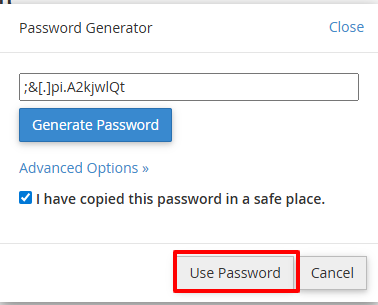
- Password: Type in your strong and secure password here. Or, you can utilize the Password Generator.

- Click Password Generator, generate a password, copy it to a secure place and click Use Password.
 Directory: Give the directory that the user will have access to. The system fills in domain-name/username by default for FTP accounts. You may change this according to the required access level:
- Full access to the website: Enter just the domain name. For instance: tutorialwriting.space

- To access the full website on the main domain, use public_html.

- Specific folder access: After the domain, add the folder name, for instance: tutorialwriting.space/webdeveloper.

- Quota: Specify a storage quota for the FTP account:
- Unlimited: There are no storage limitations.

- Custom: Limit the account to a certain amount of space.

- Unlimited: There are no storage limitations.
- Full access to the website: Enter just the domain name. For instance: tutorialwriting.space
- Login: Specify the FTP username that you wish to create. Example: webdeveloper.
- Click Create FTP Account. The account is now ready to use.




 Directory: Give the directory that the user will have access to. The system fills in domain-name/username by default for FTP accounts. You may change this according to the required access level:


Managing FTP Accounts
Once you have created FTP accounts, you can easily manage them within the FTP Accounts interface. This section provides options to edit, secure, and arrange access for each account. You can take the following major actions:

1. Change Password
To change the password for an FTP account:
- Locate the FTP account in the list.
- Click Change Password, next to the account for which you wish to change the password.

- Enter a strong, secure password. You can also use the Password Generator for added security.
- Confirm the password by clicking on Change Password.
- The password will be updated, and the user can now log in with new credentials.


This ensures that accounts remain secure, especially in the event that you suspect the credentials may have been compromised.
2. Set or Modify Quota
Control how much storage space an FTP account can use:
- Click Change Quota next to the account.

- Choose Unlimited or set a Custom storage limit.


3. Delete FTP Account
Remove accounts that are no longer needed:
- Locate the FTP account you wish to delete.
- Click Delete next to the account.

- You will see an option to Delete the User’s Home Directory.
- Check this box if you want to remove not only the account but also all the files within its assigned directory.
- Leave it unchecked if you just want to remove the account while keeping the files.
- Confirm the deletion by clicking the Delete button.

- The account will be deleted, and access to it will no longer be available.


4. Configure FTP Client
Each FTP account offers the details required to connect via an FTP client like FileZilla, CoreFTP, or Cyberduck. With these settings, users can gain access to their directories without having to log in via cPanel.
Checking the FTP account details:
- Click Configure FTP Client, next to the appropriate account.
- View all necessary connection details, including:
Manual Settings:
- FTP Username: The unique login assigned to the FTP account to access files. Example: [email protected]
- FTP Server/Host: The address of the server to which you are connecting- either your domain, such as ftp.tutorialwriting.space, or the IP address of the server.
- FTP & explicit FTPS Port: The network port used for FTP connections. This is usually port 21 for standard FTP or as set by your server for secure transfers.
FTP Configuration Files:
- The FTP configuration file contains all account details, including username, server, port, and encryption settings
- This file is used to automatically configure your FTP client instead of manually filling in the details.
- Instructions for using the configuration file are provided in the interface if you click on Instructions.

Special FTP Accounts
Special FTP Accounts relate to administrative aspects of your hosting account. The system automatically creates them, giving system-level access necessary for proper management of files and directories.
Key Points:
- Special FTP accounts cannot be deleted or changed because they are required by the hosting environment.
- System-level access is utilized to enable systems and administrators to automatically carry out tasks, updates, and backups.
- Users cannot change the password for these accounts.
Types of Special FTP Accounts
In cPanel hosting environments, special FTP accounts include two automatically created system accounts:
1. Main cPanel FTP Account
This account gives you complete access to all your website files.
Purpose:
- Provides full access to your entire home directory
- Lets you upload, edit, and manage all website files
- Used by cPanel for internal file operations
Example:
Account Name: tutorial
Home Directory: /home/tutorial
2. Logs FTP Account
This account is created to store and manage your Apache server logs.
Purpose:
- Gives access to raw server logs (access logs, error logs)
- Used by cPanel tools like AWStats, Webalizer, etc.
- Helps hosting systems generate traffic and analytics reports
Example:
Account Name: tutorial_logs
Logs Directory: /etc/apache2/logs/tutorial
Note: Users don’t use this account manually; it exists for system processes.
Checking Configuration Details:
- Click Configure FTP Client beside a special FTP account to see details.

- You can see:
- FTP Username: The username given to the special account.
- FTP Server/Host: The domain or server IP with which the account is associated.
- FTP & explicit FTPS Port: The port utilized for connections, by default 21.
- Configuration File: Includes:
- FTP Configuration Files: Ready-to-use configuration files containing all information necessary for the end-user’s FTP accounts to be imported into an FTP client.
- SFTP Configuration Files: Ready-to-use configuration files for SFTP connections over SSH to avoid re-typing credentials manually.
- Instructions: Step-by-step guidance available in the interface when you click Instructions, showing how to use the configuration files in supported FTP/SFTP clients.


Note: The password for the special FTP account is the same as your cPanel account password. It cannot be changed separately. This password is required to connect via FTP/SFTP clients.
Efficient management of FTP accounts ensures that files within your website remain organized, secure, and accessible only to relevant persons. From creating new accounts to configuration of clients and dealing with special FTP accounts, each step gives you precise control over who can access what on your hosting account.
Well-managed FTP accounts make collaboration smoother, streamline file operations, and provide a reliable way to maintain and update your website. For security and optimization of the FTP environment, use strong passwords, limit directory access, assign appropriate quotas, and adopt secure transfer methods such as SFTP or FTPS. It is also important to occasionally review your accounts and delete those that are no longer needed to ensure a clean and secure hosting environment.
One Comment
Comments are closed.