
How to Manage File Permissions in cPanel
File Permissions Management is one of the most essential tasks involved in securing, maintaining stability, and optimizing performance on your website. Misconfigured file permissions may cause typical issues, ranging from loading errors on websites to uploading problems and even security breaches allowing unauthorized access. File permissions define access and modifiability of files and folders on web hosting servers. Thus, they are a crucial part of website security.
This tutorial provides a clear and informative guide to file permissions with step-by-step instruction on how to use them effectively for your website.
What Are File Permissions and Why They Matter
File permissions determine whether you can read or write to certain files and folders in your web hosting account.
Permissions help with:
- Protecting sensitive documents from unauthorized access
- Preventing accidental modification or deletion of critical data
- Ensuring scripts and applications run correctly
- Maintaining a balance between security and usability
If permissions are too restrictive, nothing may work on your website. Too permissive, and your website may be insecure. Proper permission settings are crucial.
How to Interpret Permission Values
Permissions are usually shown as three numbers, such as 644 or 755. Each number represents permission for a particular group.
Permission Groups
Each file and folder is set up with permissions according to three different permission levels. Each permission level decides who will engage with the file and to what extent.
- User: The account that owns the file or folder. This would be cPanel account under which the web files would be created.
- Group: A group of users who share the same permissions on the server. This allows controlled access for both system processes and users who belong to the same group.
- World: It refers to users who access the server but are neither the file owner nor part of the group. This category has the lowest level of access.


These three levels must be comprehended because permissions must be set independently for each level. Incorrect setting of permissions on the world level could make files publicly accessible, while too restricted permissions on the user level might make files non-functional.
Permission Types
Every group of permissions, namely User, Group, and World, is capable of defining actions. These actions determine the functionalities of files and folders on the server and how these are handled by the website.
- Read (4): This permission allows a user to read the contents of a file or view the contents of a folder. Without read permission, a file cannot be opened and a folder cannot be browsed.
- Write (2): This permission enables modification of a file or folder. It allows changes to a file’s contents, the addition of new files to a folder, or the deletion of existing files. It is important to carefully consider when granting write permissions to prevent unintended changes or potential security risks.
- Execute (1): This grants the ability to execute the file as a script or to enter the directory. To enter the directory and view the files inside the directory, execute permission on the directory is required. This permission on the file allows the server to execute the file as a program or a script.


All permissions are assigned numerical values, which are added together to form the final permission number for each group. For example, a permission value of 7 means that read (4), write (2), and execute (1) permissions are all allowed. A permission value of 5 means that read (4) and execute (1) permissions are allowed, while write (2) permission is denied.

Common Permission Examples
The following are common permission values, along with a description of what each of them entails:
- 644
- User: Read & Write
- Group: Read
- World: Read
- This mode of permission can be generally applied to files on websites like HTML, PHP, CSS, and image files. This mode allows the file owner to write to it while allowing other people to read it.

- 755
- User: Read, Write & Execute
- Group: Read & Execute
- World: Read & Execute
- This is normally used for directories. The execute permission will allow everyone to access that directory and read its files, though write permission is still reserved for owner in this case.

- 600
- User: Read & Write
- Group: No Access
- World: No Access
- This is commonly used in sensitive configuration files. This helps ensure that only the owner of the file is able to read or write the file.

- 700
- User: Read, Write & Execute
- Group: No Access
- World: No Access
- This access right is employed when it comes to private directories that only need to be accessed by the owner of the account and no one else.


These values for the permissions are preferred due to their ability to maintain a good level of security and functionality. Using the standard settings on the permissions helps avoid any issues with access while ensuring that your website is secure.
Recommended File and Folder Permissions
Standard permission settings will help avoid problems with access and secure confidential information. These guidelines were chosen for their broad usage on Linux hosting platforms.
Files
- Permission value: 644
- Examples: HTML, PHP, CSS, JavaScript, image files
It allows the file owner to view and modify the file, while the server and visitors can only view it. Most website files are accessed only by the web server and therefore do not need write permissions enabled for anyone other than the owner.
Folders
- Recommended permission: 755
- Examples: public_html, wp-content, uploads
Execute permission is required to access the files within a folder; without it, the server cannot access them. With 755 permissions, the owner can manage the contents of the folder, while other users are allowed to read and access the files but cannot modify them.
Configuration Files
- A more controlled environment might be necessary.
- Common permissions: 600 or 640
Configuration files may contain sensitive information such as database passwords or security keys. Setting strict permissions limits access to only the file owner, or in some cases, the server group. This helps prevent unauthorized access and provides an additional layer of security.
Critical: Don’t use 777 permissions! This permission level gives all users on a server read, write, and execute permissions. This can be useful if you are getting errors related to file permissions, but it is a huge security problem and not advisable on a production level website.
File Permission Change Via File Manager in cPanel
cPanel’s File Manager is a safe and convenient method of handling file and directory permission settings from within a web browser. It is not necessary to use any extra applications or software, which is convenient when troubleshooting and resolving permission error issues.
To change file permissions:
- Log in to your cPanel account.
- Navigate to the Files section on the cPanel dashboard.
- Click File Manager.

- After opening the file manager, you will be able to view all the files and directories that are associated with your hosting account.

- Go to the folder where the file or folder that you would like to change resides. For example, to see the files of your main domain, click on public_html.

- To select a file or a folder, click on it.
- Right-click on the selected item and select Change Permissions from the menu.

- A dialog box will appear, and you can see the current permissions in the form of checkboxes and numbers. For instance, you might see permissions like 644 in the case of PHP files and 755 in the case of folders.

- Modify permissions by ticking or clearing boxes corresponding to Read, Write, and Execute permissions for User, Group, and World, or by using a numerical code like 644 for files and 755 for directories.

- To apply the update, click Change Permissions.


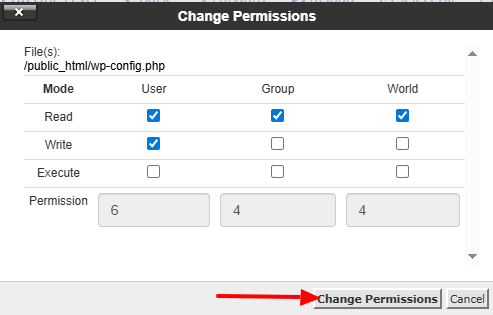
Always double-check your modifications to make certain the file or folder is still accessible while remaining secure.
Configuring Security Best Practices for File Permissions
- Use the least privileges required for files.
- Periodically check permissions after installing plugins/themes.
- Be careful about changing file permissions if you are unsure of what you are doing..
- Never set file or folder permissions to 777.
- Configuration files should be more restricted than public files.
- Proper privilege handling reduces the risk of intrusion.
By adhering to suggested permission values, you are assured of having a safe hosting environment as well as making sure that your site is working as expected. If you are not sure regarding permission values or encounter issues with your site when updates are done, just revert permission values to their defaults and examine error messages in cPanel. You can also reach our hosting support team with your concerns so they may assist with checking permission values.