
How to Set Up Email Forwarding in cPanel
Email forwarding is a valuable feature that allows you to automatically redirect incoming emails from one address to another. This functionality is particularly helpful for managing multiple email accounts, centralizing communications, and ensuring that you don’t miss important messages. In this guide, we will walk you through the process of setting up email forwarding in cPanel with detailed instructions.
- Log in to your cPanel account.
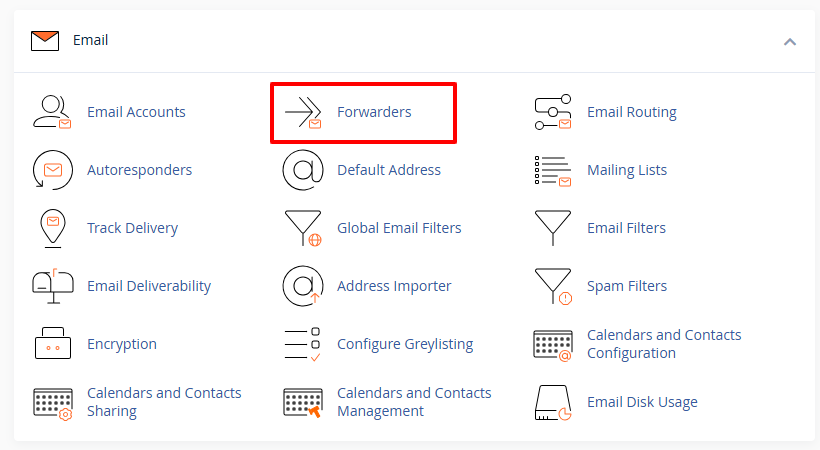
- Scroll down to the Email section and click on Forwarders. This will take you to the email forwarding management page.

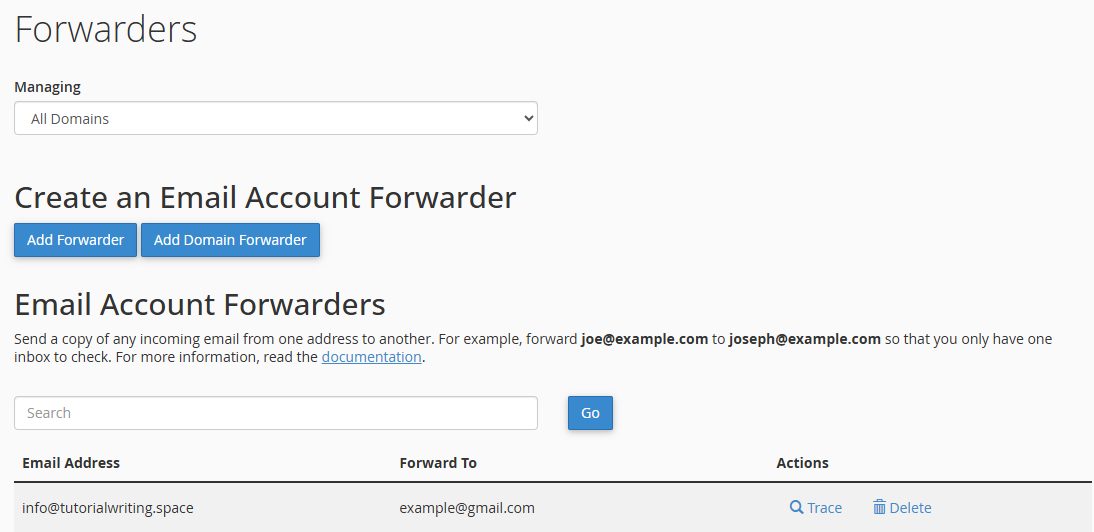
- On the Forwarders page, you will see any existing forwarders listed, along with the option to add new ones.

- Click on Add Forwarder to create a new email forward.

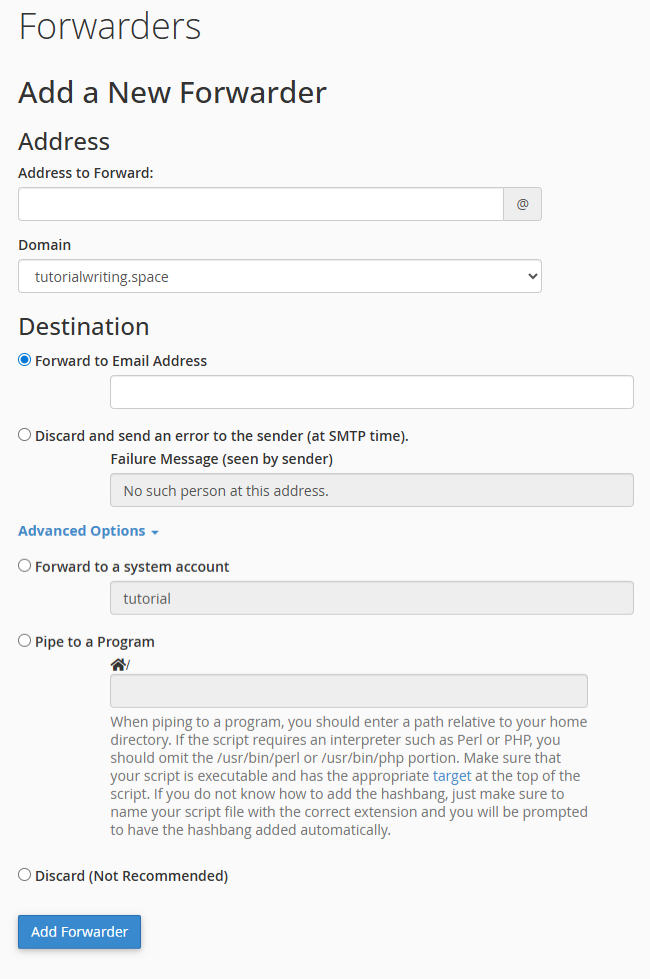
- In the Address to Forward text box, enter the email username that you want to set up for forwarding. For example, if your email address is [email protected], simply enter “info” and then select the relevant domain from the dropdown menu.

- The Destination section determines where your incoming emails will be forwarded. The following options are available:
- Forward to Email Address
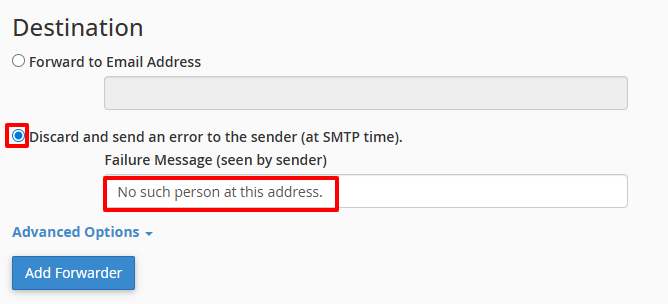
- Discard and send an error to the sender
- Advanced Options: Click on advanced options to view these choices.
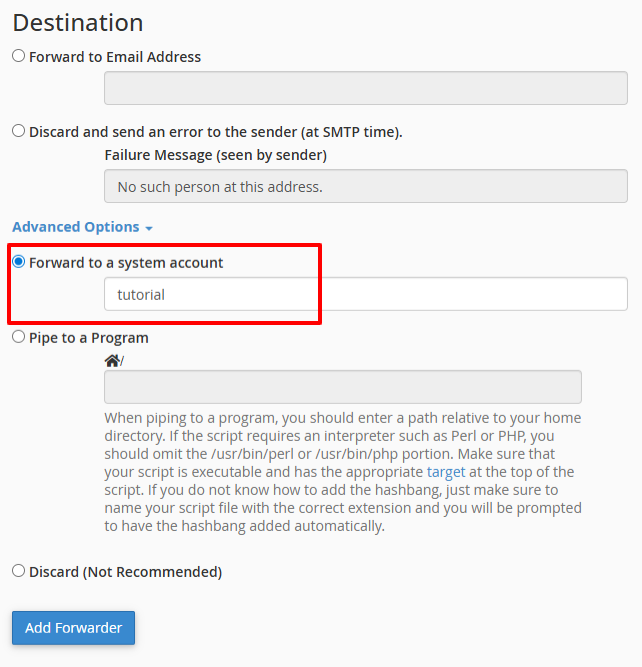
- Forward to a system account
- Pipe to a Program
- Discard (Not Recommended)

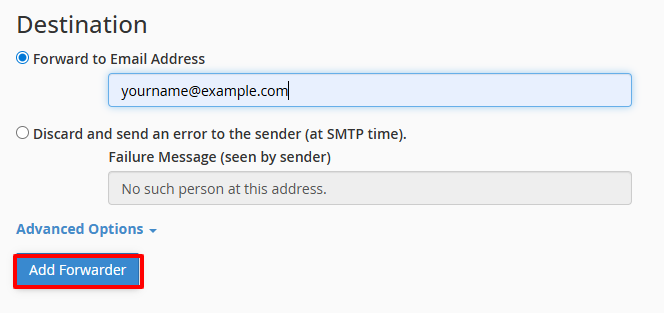
- Forward to Email Address:
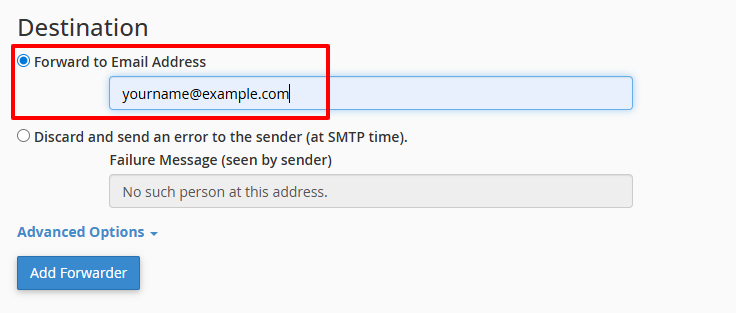
- Select this option if you want to forward emails to another email address. Enter the destination email address where you would like to receive the forwarded emails (e.g., [email protected] or [email protected]).

- Select this option if you want to forward emails to another email address. Enter the destination email address where you would like to receive the forwarded emails (e.g., [email protected] or [email protected]).
- Discard and send an error to the sender:
- Choosing this option means that emails sent to the original address will be rejected, and a custom error message will be sent to the sender.
- This option is useful for:
- Deprecated or unused email addresses
- Email addresses that should not receive any communication
- Informing senders of updated contact information
- Make sure to write the message that the sender will receive.

- Forward to a system account:
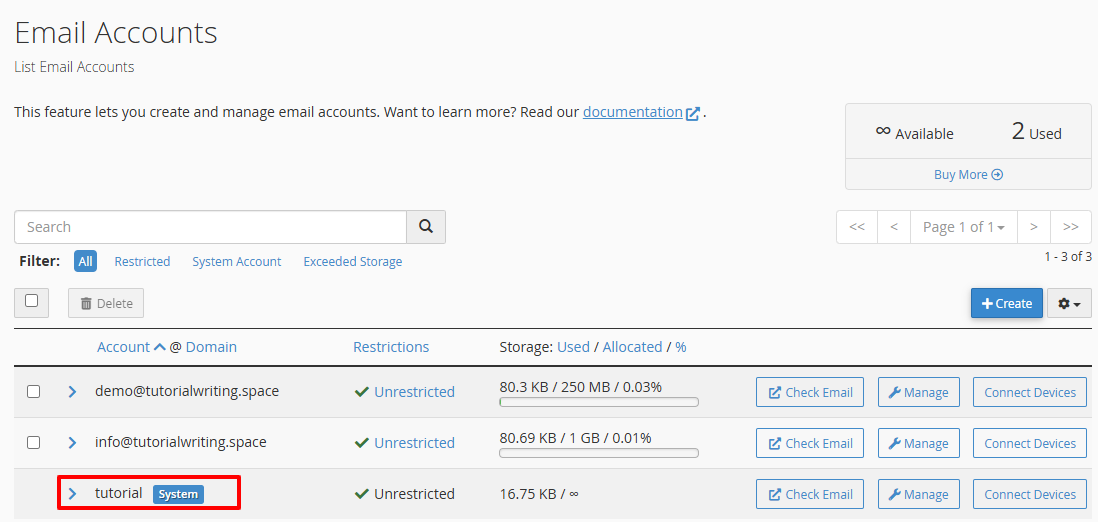
- This option allows you to forward emails to a predefined system email account created automatically by cPanel, primarily for administrative purposes.
- To view the system email account, go to the cPanel dashboard, scroll to the Mail section, and click on Email Accounts.

- Select the destination option: Forward to a system account. The system email account username is added by default.

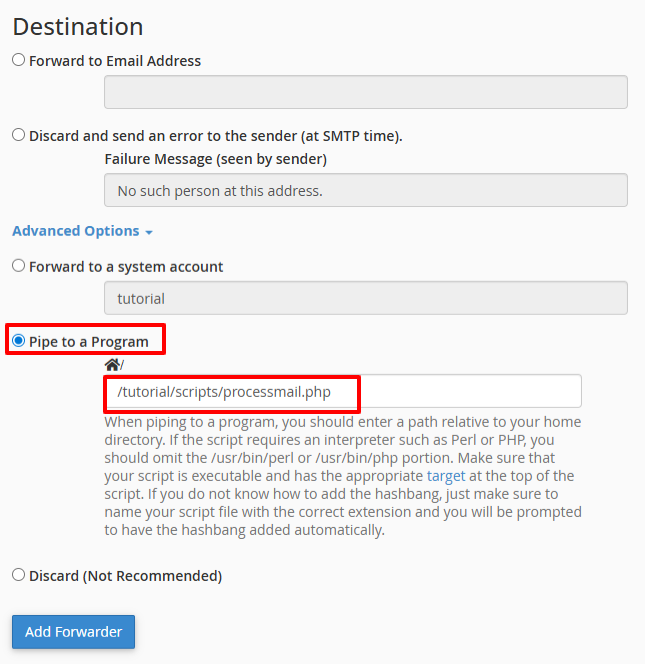
- Pipe to a Program:
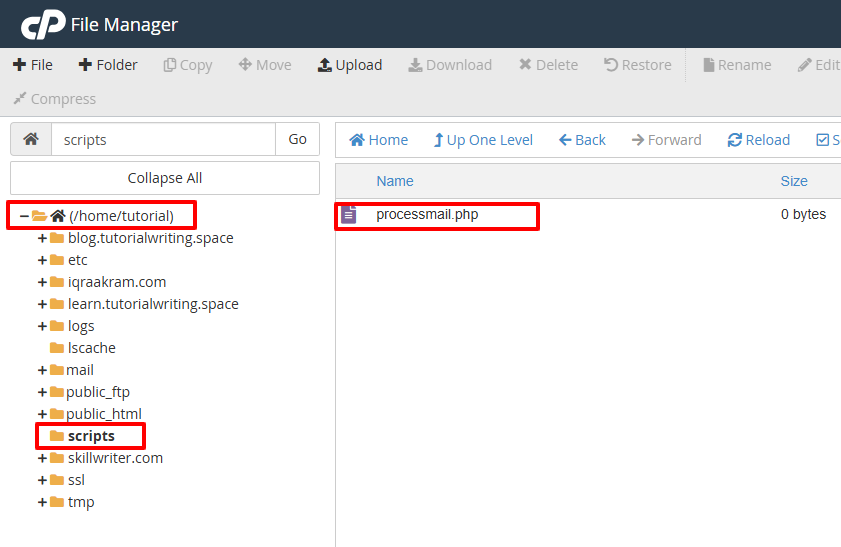
- This option sends emails to a script or program for processing, which requires knowledge of script configuration. You must provide the full file path to the script (e.g., /tutorial/scripts/processmail.php).
- To check the path of your script, go to the cPanel dashboard, click on File Manager, and verify the location. Ensure that the script is executable and correctly formatted to handle incoming emails.

- Enter the script location (e.g., /tutorial/scripts/processmail.php).

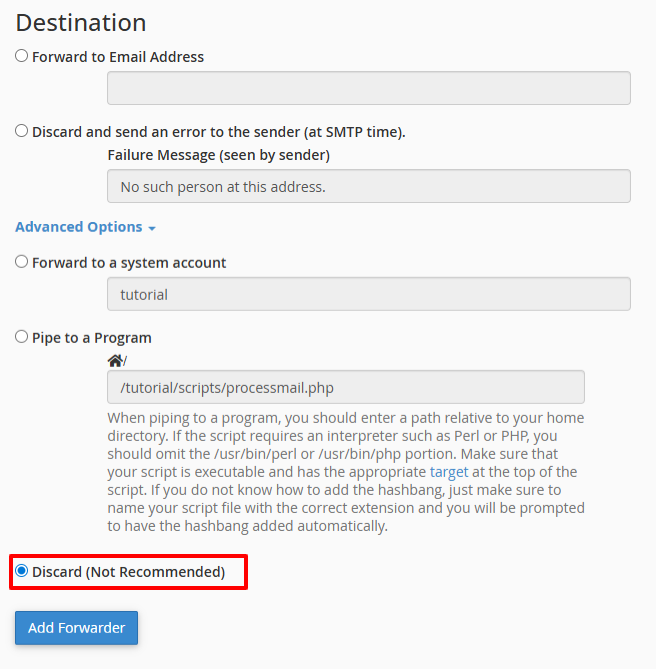
- Discard (Not Recommended):
- Selecting this option will delete incoming emails without notifying the sender. This option is generally discouraged unless you are certain that no emails should be accepted at that address.

- Selecting this option will delete incoming emails without notifying the sender. This option is generally discouraged unless you are certain that no emails should be accepted at that address.
- After selecting your preferred method of forwarding, click on Add Forwarder. A confirmation message will appear once the rule has been successfully created.

- Test the forwarding. To verify that your forwarding is working correctly, send a test email to the original email address you set up for forwarding. Then, check the destination inbox (the email address you forwarded to) to ensure that the email was successfully redirected. If the email does not arrive, revisit the setup to confirm that all details were entered correctly.
- Manage your forwarders. To view available email forwarders, go to the cPanel dashboard → Email → Forwarders. You can add multiple email forwarders for one email by following the steps above and delete any forwarders from the list as needed.




Email forwarding ensures that all incoming messages reach the correct account, centralizes communication, and reduces the risk of missing important emails. By following these steps, you can effectively manage your email traffic and ensure that important messages reach you without any hassle.