
How to Check and Fix your Resouce Usage in cPanel
Resource usage directly impacts how well a website serves requests and handles load. When usage exceeds normal levels, websites tend to slow down, throw errors, or experience temporary restrictions. Such issues can gradually grow in the background, hardly noticeable in an instant, until your visitors start complaining. cPanel introduces tools that make activity monitoring, identification of which processes consume resources, and taking the right actions to maintain smooth and reliable performance really easy.
Understanding ResourceMetrics
cPanel’s Resource Usage tool tracks several key metrics. Knowing what they are will help you understand which areas of your website are utilizing the most server resources:
- CPU Usage: This is the computing power that is employed in executing scripts and loading web page content. High usage of CPU can cause the website to load more slowly or even result in server limits.
- Memory (RAM) Usage: The amount of RAM used by scripts and applications. If too much memory is used, it can lead to pages or scripts failing.
- Entry Processes: The number of simultaneous scripts or connections running. Exceeding this may result in temporary errors or delays.
- I/O Usage (Input/Output Operations): This refers to the number of input or output operations your website conducts with the server. High I/O usage may reduce general server performance.
- Processes: The number of all active tasks or scripts currently running for your website. High number of simultaneously running processes can overload the server.
- Faults: These are errors caused by the failure of processes due to resource constraints, for example, the CPU or memory. These faults may impact the reliability and functionality of the website.
Monitoring these metrics helps you address problems before they affect your site.
How to Check Resource Usage in cPanel
Here’s a step-by-step guide on how to check the resource usage of your cpanel:
- Log in to your cPanel account.
- Navigate to the Metrics section on the dashboard.
- Click Resource Usage to open the detailed view.

- Click the Current Usage tab to monitor resource usage.

- Set the Timeframe to specify the time period you wish to evaluate, for example, last 4 hours, last 7 days, or a specific date range.

- Set the Time Unit to define the level of granularity of data (hours, days, etc.)

- Examine each metric to identify any spikes or usage:
- CPU Usage: Check for any peaks which might suggest the presence of resource-intensive scripts or plugins.

- Memory Usage: Verify that RAM consumption is near the limit set by your account.

- Entry Processes: Check the number of scripts that are running concurrently.

- I/O Usage: Tracking file read/write accesses to identify possible optimizable I/O activity.

- Processes: Analyze the number of active tasks and scripts.

- Faults: Record any faults due to resource constraints.

- CPU Usage: Check for any peaks which might suggest the presence of resource-intensive scripts or plugins.


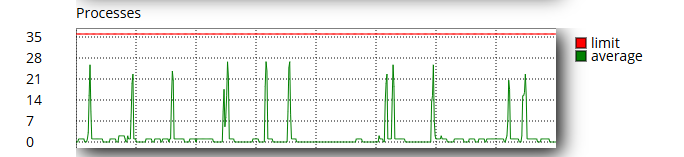

Take action by identifying inefficient scripts, optimizing content, and refining business processes.
How to Fix High Resource Usage
If your website is using too many resources, follow these steps to reduce the load and optimize for performance:
1. Optimize Website Content
- Compress and resize images to reduce file size.
- Remove unnecessary files or scripts.
- Cache data to reduce server load.
2. Review and Update Plugins or Scripts
- Remove any unused scripts or extensions.
- Deactivate unused or outdated plugins.
- Replace heavy scripts with lighter alternatives that are optimized.
- Ensure that all components of the website are kept up to date to maximize efficiency.
3. Manage Your Database
- Clean your database and optimize it through phpMyAdmin.
- Remove unwanted tables, old backups, and spam.
- Optimize the queries to handle high traffic.
4. Limit Concurrent Processes
- Identify scripts running multiple connections at once.
- Schedule or stagger resource-heavy tasks.
- Minimize long-running processes.
5. Use a Content Delivery Network (CDN)
- A CDN helps distribute the server workload by delivering static content from multiple servers around the world.
- Popular CDNs: Cloudflare, StackPath
6. Traffic Monitoring and Bot Blocking
- Analyze access log entries to detect irregular traffic patterns or bot traffic.
- Deploy security tools or firewalls that block malicious traffic.
These practices help keep your website stable, fast, and reliable. By monitoring and managing resource usage through cPanel, you can quickly identify and resolve issues, optimizing performance, preventing downtime, and providing a seamless experience for your visitors. Effective resource management ensures your website runs efficiently while keeping you in full control of server performance.