
How to Redirect Domains & URLs Using cPanel
Redirects play an important role in maintaining your website structure and ensuring visitors will always reach the right place. When a page moves, a link changes, or the entire domain gets replaced, having the proper redirect setup prevents errors and protects your site’s search engine visibility.
cPanel has a built-in Redirect tool that allows you to make those changes without having to touch code.
In this guide, you’ll learn how each type of redirect works, and how to create, manage, and remove redirects directly from your cPanel dashboard so that your visitors are always guided to the correct page.
What Are Redirects?
Redirects automatically send traffic from one URL to another. When someone types a link that has been redirected, their browser automatically sends them to the updated destination.
Redirects are used when you:
- Change your domain
- Move content to a new page
- Restructure your website
- Replace broken links
- Consolidate similar pages
- Avoid 404 Page Not Found errors
- Maintain SEO value after changes
Properly set-up redirects keep your website clean, functional, and search-engine friendly.
Types of Redirects Available in cPanel
cPanel offers two types of redirects:
- Permanent Redirect (301)
- Temporary Redirect (302)
Understanding each option will help you select the right one for the change you’re making.
1. Permanent Redirect (301)
A 301 redirect informs browsers and search engines that a page or domain has moved permanently.
Use this when:
- You’ve changed your website structure
- A page no longer exists
- You’ve moved to a new domain
- You want search engines to treat the new URL as the updated version of the old one
SEO Benefit: The visibility and strength of ranking for the old URL transfer to the new one.
2. Temporary Redirect (302)
A 302 redirect signals that the move is only temporary.
Use this when:
- A page is being updated
- A section is currently under maintenance.
- You’re testing a new design or layout
Search engines are continuing to treat the old URL as the main one because the change isn’t permanent.
How to Add a Redirect in cPanel
Follow these steps to set up a redirect using cPanel’s built-in Redirects tool:
- Log in to your cPanel account.
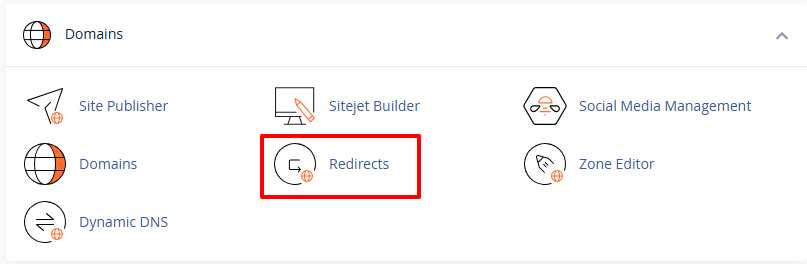
- Go to the Redirects tool under the Domains section.

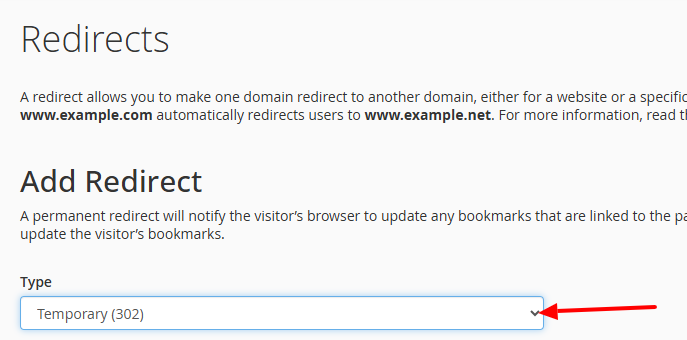
- Select the type of redirect you need from the dropdown menu, either Permanent (301) or Temporary (302).


- Choose the source domain you will be redirecting from:
- If redirecting a certain page or a URL, insert the page path here. For example: tutorialwriting.space/blog

- Leave it blank to redirect the whole domain, such as tutorialwriting.space

- If redirecting a certain page or a URL, insert the page path here. For example: tutorialwriting.space/blog
- Destination URL: This should include http:// or https://, such as https://newsite.com/blog.

- Choose how the redirect should handle www:
- Only redirect with www: Only the www version (www.tutorialwriting.space) will redirect.
- Redirect with or without www: Both the www and non-www version URLs www.tutorialwriting.space and tutorialwriting.space will redirect. Normally, it is advisable to do this.
- Do Not Redirect www: Only the non-www version will be redirecting – tutorialwriting.space.
- Enable wildcard redirect if needed:
- This makes all subpages, folders, and files under the selected domain or directory automatically redirect to the same paths on the new domain.
- Wildcard redirect for the entire domain:
- All pages, subfolders, and files across the domain will redirect.
- Example:
- tutorialwriting.space/blog → https://newsite.com/blog
- tutorialwriting.space/contact → https://newsite.com/contact
- tutorialwriting.space/products/page1 → https://newsite.com/products/page1
- Wildcard redirect for a particular directory:
- Only pages, subfolders, and files within that folder will be redirected.
- Example:
- tutorialwriting.space/blog/post1 → https://newsite.com/blog/post1
- tutorialwriting.space/blog/images/pic.jpg → https://newsite.com/blog/images/pic.jpg
- Pages outside that folder (such as tutorialwriting.space/contact) will not redirect.
- With wildcard redirect: Every page, subfolder, or file under the selected domain or directory will be automatically redirected.
- Without wildcard redirect: Only the page or directory you specify will be redirected. All other pages and files will remain unredirected unless you make separate redirects for them.

- Click Add to create the redirect.
- It will now appear in the list of Current Redirects.

- Test the redirect: Open a new browser tab or incognito window. Type in the old URL and make sure it redirects to the new destination. If that doesn’t work, try checking your settings or clearing your browser cache.



How to Remove Redirects
Sometimes you no longer need a redirect. Here’s how to safely remove it:
- Open Redirects from the Domains section in cPanel.
- Scroll down to the list of Current Redirects.

- Click Delete next to the redirect you want to remove.

- Confirm the deletion.


After it is removed, the old URL will no longer automatically forward visitors to the new destination.
Redirects are a simple but powerful tool for managing website changes. Properly managing redirects will help you keep your website efficient and your visitors always landing on the right pages. Remember to select the right type of redirect, enable wildcards where necessary, and test each redirect to make sure that everything works correctly. With these practices, you will be able to manage your redirects confidently and keep the experience smooth for visitors and search engines alike.