
How to Access Webmail and Send Emails in cPanel
Managing emails efficiently is crucial for businesses and website owners. cPanel provides a streamlined way to access webmail and send emails. Here’s a clear step-by-step guide to help you do this:
- Log in to your cPanel account.
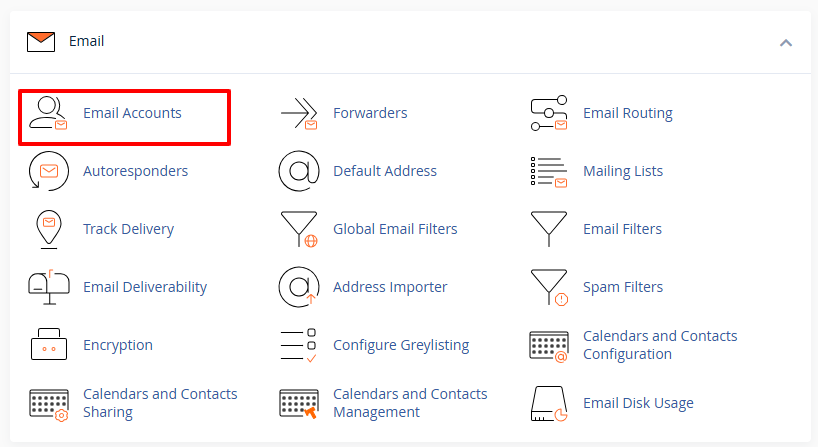
- Go to the Email section and click on Email Accounts.

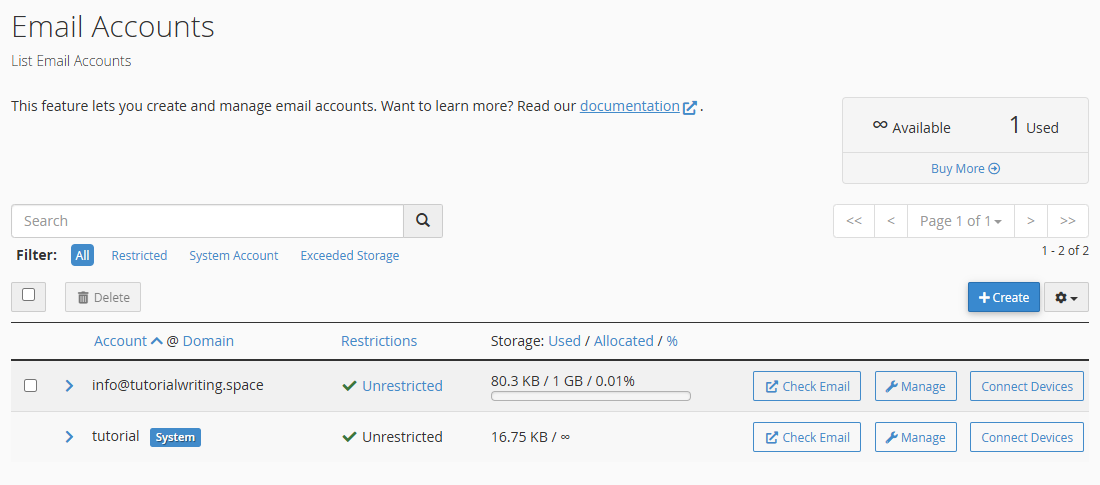
- You will see a list of all email accounts associated with your domain.

- Locate the email account you want to use and click on Check Email next to it.

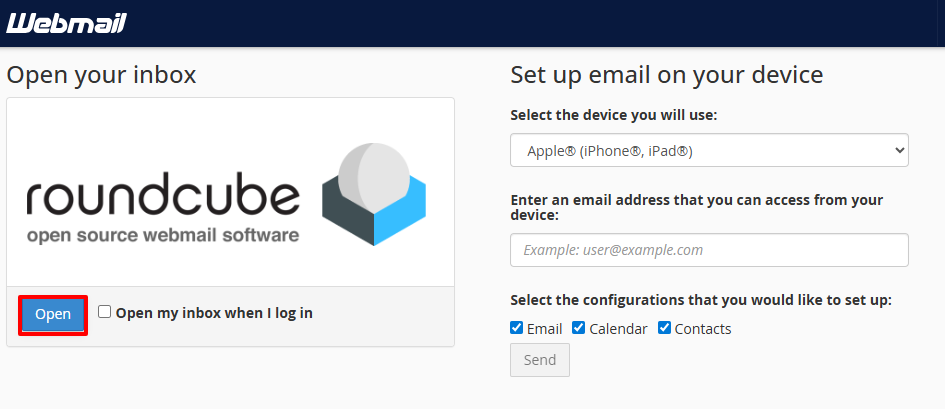
- Click the Open button to access the webmail interface.

- You will be redirected to the Roundcube Webmail interface.

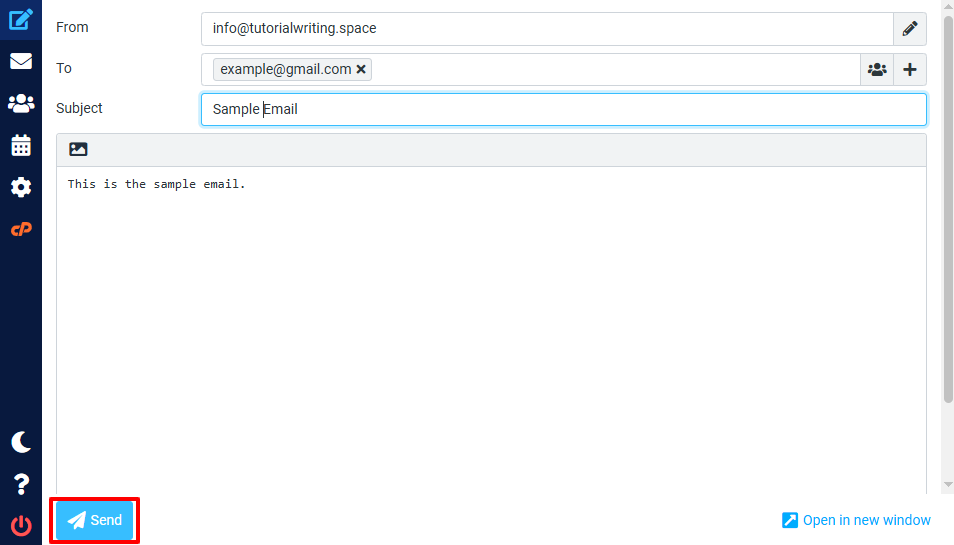
- To send an email, click on Create a New Message.

- Enter the recipient’s email address in the To field, add a subject, write your message, attach files if necessary, and click Send.

- You will see a success message confirming that your email was sent.
- To check sent emails, click on the Sent Email folder.

- Manage your emails by checking the Inbox and other folders such as Drafts, Spam, and Trash to keep your account organized.




Following these steps will help you manage your emails efficiently and communicate professionally using your domain’s email accounts. Remember to regularly check your inbox, spam, and sent folders to stay on top of your communications!