
How to Change Your Client Area Password and Enable Two-Factor Authentication in MaxCyberHost
To secure your MaxCyberHost hosting account and sensitive data, such as financial information and hosting files, make sure to use strong passwords and enable two-factor authentication. These measures give you full control over your account and protect it from potential threats. MaxCyberHost provides easy-to-use tools for changing passwords and enabling two-factor authentication, ensuring your hosting environment remains safe.
To enhance your online security and safeguard your digital assets for the long term, follow the steps outlined below.
Changing Your Client Area Password
A strong password is the simplest means of ensuring that your account will remain safe and sound. To change your password, you need to follow the steps below:
- Go to the MaxCyberHost website and click the Login button located on the upper menu.

- Enter your registered email and current password to access your client area.

- Click on the Hello, [Your Profile Name] button at the top-right corner and select Change Password from the dropdown menu.

- Enter your current password and your new password.

- A password generator is also available which helps in automatically creating a secure password.
- Click on Generate Password.

- Choose the desired length for the password.
- Click Generate New Password.

- Now, click on the Copy to Clipboard and Insert button. The password will be automatically populated into the password field.
- Click Save Changes to save your password. You will receive a message confirming that your password has been updated successfully.

- Click on Generate Password.


Tip: Remember to store your new password safely as well. A well-crafted password would comprise a combination of upper and lowercase letters, numbers, and special characters for optimal security purposes.
Enabling Two-Factor Authentication (2FA)
Two-factor authentication provides an additional level of security for your account. Even if an attacker manages to get your password, he or she will not have access to your account without completing the next authentication process. To set up two-factor authentication, follow the below steps:
- Log in to your MaxCyberHost client area.
- In the top right corner, click on the button labeled Hello,[Your Profile Name] , then click on Security Settings from the drop-down menu.

- In Security Settings, click Enable Two-Factor Authentication (2FA).

- You can start setting up 2FA by clicking the Get Started button.

- Select your desired authentication app:


Google Authenticator
- Install Google Authenticator from the Play Store or App Store.
- Open the app and log in with your Google account.
- Tap the Add a code or + icon to create a new account for your MaxCyberHost login.
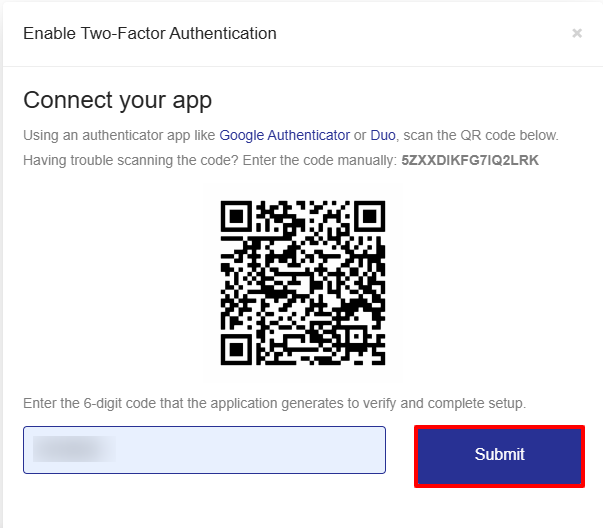
- Select Scan a QR code and scan the QR code shown on your MaxCyberHost client area.
- Enter the 6-digit code generated in the app into the client area and press the Submit button.
Duo Mobile
- Install Duo Mobile from the Play Store or App Store.
- Open the app and tap Set up account, then select Use a QR code.
- Scan the QR code displayed in your MaxCyberHost client area.
- Input this 6 digit code that has been produced in Duo Mobile and click on Submit.
- You will see a confirmation message indicating that 2FA has been successfully enabled. From now on, each time you log in, you will need to enter a one-time code from your authenticator app along with your password.
Tip: Authentication codes are time-sensitive and refresh frequently for security. Most authentication code Apps provide a six-digit code every 30 to 60 seconds. After scanning a QR code, it is essential to input it immediately since an old code will not be accepted once it expires. In cases where the code has changed before input, it is advisable to use the latest code available on the application.
How to Log into the Client Area After Enabling Two-Factor Authentication
Once 2FA is enabled for your account, you will now need to enter both the password for your account and an authentication code to log into the MaxCyberHost client area:
- Go to the MaxCyberHost website and click on the Login button in the top menu.
- Enter your registered email and password.
- After providing your login credentials, you will then be required to enter a 6-digit code from your chosen authentication application (Google Authenticator/Duo Mobile).
- Open your authentication app, then get the code for your MaxCyberHost account.
- Enter your current code of 6 digits, which appears inside the app, and click Submit.
- Once this is confirmed, you will be granted access to your client area.
Note:Note: The auth code is time-sensitive and changes every 30-60 seconds. If it changes before you enter it, you should enter the latest code displayed on your app.
Now, you have added an important layer of security for your account by upgrading your password and setting up two-factor authentication. To ensure your account is always in an optimal state of security, we recommend change your passwords periodically or if any unusual activity happens, keep track of any unusual account activity, and avoid public Wi-Fi networks during sign-in. By following this, your MaxCyberHost account will always be secured, providing you with peace of mind regarding your hosting account management.