
How to Open a Support Ticket in MaxCyberHost Client Area
MaxCyberHost provides you with a strong Client Area, making your management of hosting services smooth and efficient. One of the main features it comes with is the support ticket system, through which you will be able to communicate directly with the support team, report issues, and get help in an orderly fashion. Using the ticket system ensures that every request is tracked, prioritized, and resolved efficiently, giving you a reliable way to handle any hosting-related concerns.
Submitting a Support Ticket
To get assistance as quickly as possible, follow these steps:
- Open your browser and navigate to MaxCyberHost.
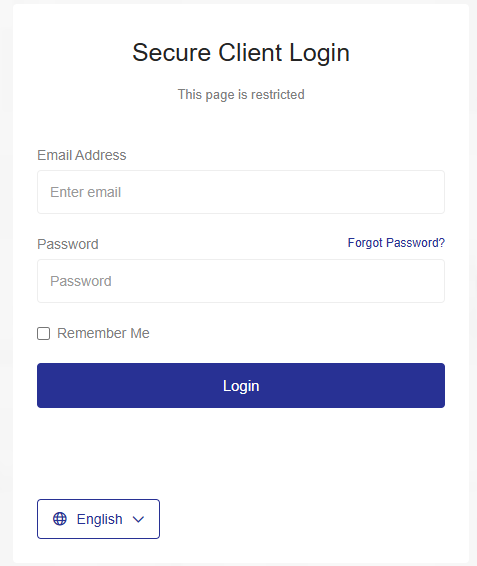
- Click the Login link available in the menu.
- Enter your registered email and password, then click Login.

- Scroll down the page, and under Recent Support Tickets, click Open a Ticket.

- You can also open a ticket from the top menu, by clicking Support and then clicking Open Ticket.

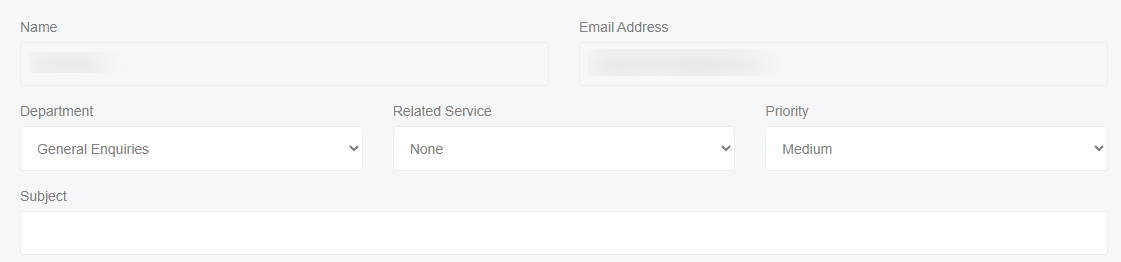
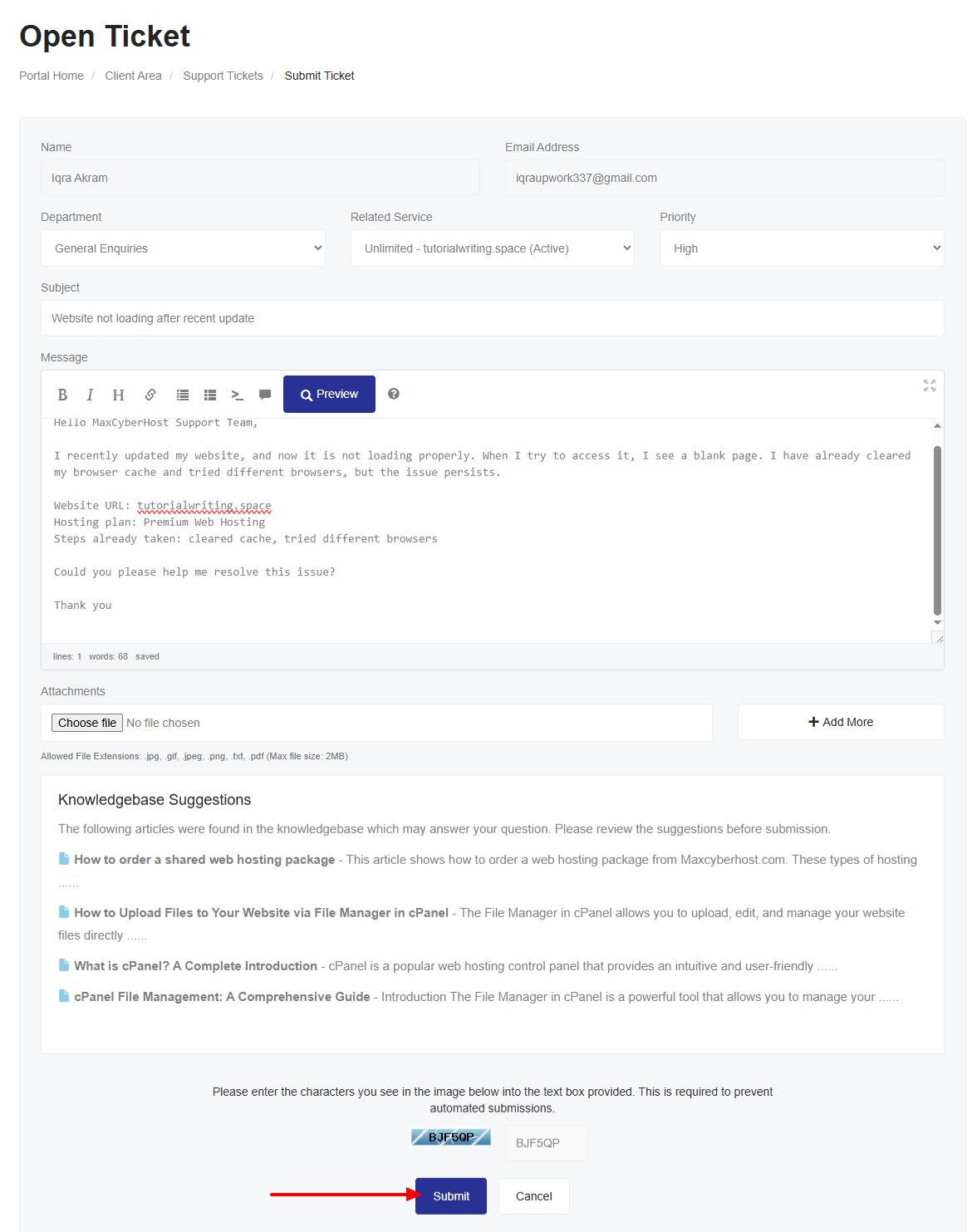
- Enter ticket details:
- Name and Email Address: These are inserted automatically.
- Department: Choose the department from the dropdown menu.
- Related Service: Choose a service related to your issue from the following dropdown menu.
- Priority: Select the priority of your issue from the dropdown menu.
- Subject: Compose a clear, concise title of your problem.

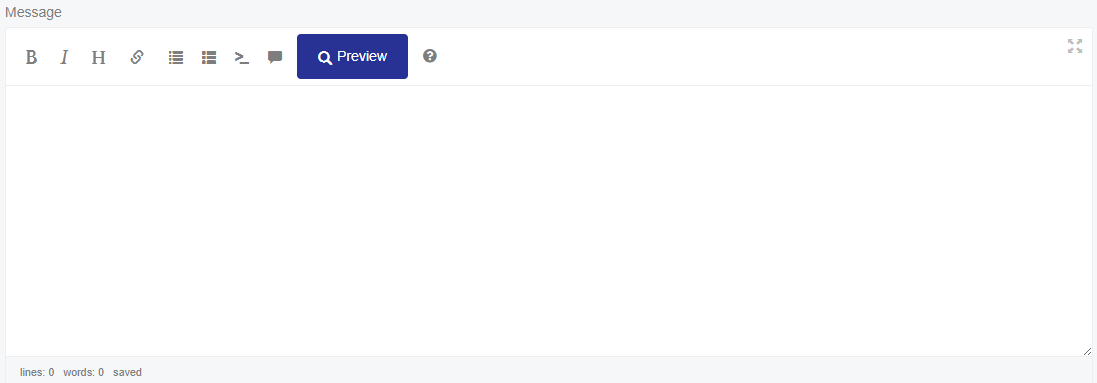
- Message: Provide a detailed explanation of your problem, including steps you’ve taken, error messages, and any relevant details.

- Attachments: Click on Choose File and attach a file, such as a screenshot or log. If you need to attach more than one file, click the Add More button, and you can upload other attachments similarly.

- CAPTCHA Verification: Please enter the characters you see in the image into the text box provided. This step is necessary to prevent automated submissions.

- Review your information and click Submit Ticket.

- A confirmation message will appear indicating that your ticket has been successfully created, including a Ticket Number. You will also receive a confirmation email with your ticket number and tracking details.






Note: All responses from the support team will also be emailed to you, so you can stay updated without logging in continuously.
Managing Your Support Tickets
After submitting a ticket, you can monitor progress and close tickets when issues are resolved.
- Access Your Tickets:
- In the top menu, click on Support, then click on Tickets.

- You will be presented with a list of all your submitted tickets with their current status.

- In the top menu, click on Support, then click on Tickets.
- Track Ticket Status:
- Tickets can have statuses such as Open, Answered, Customer-Reply, or Closed.
- Click any ticket to see details, responses from the support team, and updates.
- Ticket Statuses:
- Open – The ticket is newly submitted and awaiting action.
- Answered – The support team has replied to your ticket.
- Customer-Reply – You have replied to the ticket, and it is waiting for support team action.
- Closed –The ticket has been resolved.

- Viewing Ticket Responses:
- Click any ticket to see support responses and previous correspondence.
- This applies to tickets of any status, including closed tickets.

- Ticket Replies:
- Click Reply inside the ticket interface to provide additional information or updates.
- Important: Please refrain from sending individual emails, as it may delay the resolution process.

- Closing Tickets
- Once an issue is resolved, click on the Close button within the ticket interface to close the ticket.

- Once an issue is resolved, click on the Close button within the ticket interface to close the ticket.


This is how you can get the MaxCyberHost support staff’s help in the quickest and most efficient way possible. So, make sure you add all necessary details in your ticket, choose the correct department related to the nature of your problem, and attach relevant files to help the support team resolve your issue smoothly. MaxCyberHost’s support team is available to assist with issues ranging from technical problems to account inquiries. You can also get help by contacting our WhatsApp support for quick assistance.